Microsoft Outlook is the email client included with the Microsoft Office suite. It is designed to operate as an independent personal information manager, as an Internet mail client, or in conjunction with the Microsoft Exchange Server for group scheduling, email, and task management. It manages email, calendars, contacts, tasks, to-do lists, and documents or files on the hard drive. Outlook helps you communicate through email, phone support, and group scheduling capabilities. Outlook also helps you share information by means of public folders, forms, and Internet connectivity.
Outlook juggles scheduling, group ware, personal information (contacts, tasks), email, and documents all in one place, and allows you to create and view information using a consistent interface.
You can find information easily with Windows shortcuts, which let you navigate to any private, public, or file system folders. Outlook Journal helps you find a document based on creation date and name.
After you set up Microsoft Outlook, you can import the contents of the Microsoft Schedule+ data file (file name extension .scd if you use Schedule+ 7.x, .cal if you use Schedule+ 1.0). The Schedule+ file stores your appointments, events, meetings, to-do list, and contacts (Schedule+ 7.x only). The .scd or .cal file is not modified or deleted during the import process. See your system administrator before you set up Outlook for use with Schedule+ files. Outlook 2002 and later does not support Schedule+ as a Primary Calendar, so in order to view your Schedule+ data files you must import them into Outlook.
Outlook imports the following types of Schedule+ data into the following Outlook folders:
- Appointments and events are imported into the Calendar folder.
- Tasks are imported into the Tasks folder.
- Contacts (Schedule+ 7.x only) are imported into the Contacts folder.
- Notes (Schedule+ 1.0 only) must first be imported into Schedule+ 7.x, where they are converted to events, and then imported from Schedule+ 7.x to Outlook as events in the Calendar folder.
The Outlook 2007 configuration process
Before I show you how to configure Outlook 2007 to connect to Exchange Server 2007, there are a few prerequisites. First, you must have created a couple of user mailboxes. I am also assuming that you have already installed Microsoft Office 2007 on the users' workstations.
Finally, at the time I wrote this tutorial, Exchange Server 2007, Microsoft Office 2007, and Windows Vista were all still in beta testing. That being the case, it is possible that anything I show you here could change by the time that the various products are released.
Configuring Outlook 2007
1. Log into one of your workstations using one of the user accounts for which you have created a mailbox. After logging in, open Microsoft Outlook 2007 to view the Outlook 2007 Startup screen, which is really just a welcome screen for the Setup wizard.
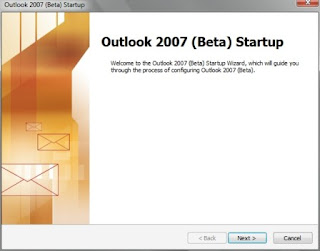
2. Click Next and you will see a screen asking you if you would like to configure an email account. Click the Yes button and then click Next again.
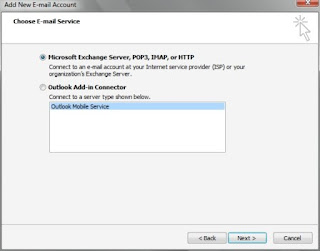
3. You will now be asked if you want to connect to an Exchange, POP3, IMAP, or HTTP server, or if you would rather connect to an Outlook Add-in Connector. Choose the Microsoft Exchange Server option and click Next.
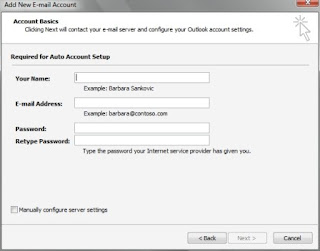
Outlook 2007 will now request a name, email address, and password. (One thing that's worth noting is that Outlook 2007 is prompting you to enter the user's name, not the person's user name.) Before you start typing though, just wait for a few seconds. Assuming that you have your workstation's DNS settings configured correctly, and the user account that you are signed in with has a mailbox, Outlook 2007 should automatically detect the Exchange Server and fill in the necessary information for you.
It usually only takes a few seconds for Outlook to automatically configure itself. If for some reason Outlook configures itself incorrectly or not at all, you do have the option of performing a manual configuration. Notice the Manually Configure Server Settings checkbox in the lower left corner of Figure 24.
5. Assuming that Outlook 2007 has configured itself correctly, click Next to continue.
6. Depending on how your test environment is configured, you might possibly see a message telling you that the certificate issuer for the site is untrusted or unknown. If this were a production environment, it would be a serious issue. Being that our purpose at the moment is to simply take Exchange 2007 and Outlook 2007 for a test drive though, just click "Yes" to ignore the message and continue.
Microsoft Outlook 2007 should now be installed and ready to use.
Finally, at the time I wrote this tutorial, Exchange Server 2007, Microsoft Office 2007, and Windows Vista were all still in beta testing. That being the case, it is possible that anything I show you here could change by the time that the various products are released.
Configuring Outlook 2007
1. Log into one of your workstations using one of the user accounts for which you have created a mailbox. After logging in, open Microsoft Outlook 2007 to view the Outlook 2007 Startup screen, which is really just a welcome screen for the Setup wizard.
Figure: This is Outlook 2007's Welcome screen.

2. Click Next and you will see a screen asking you if you would like to configure an email account. Click the Yes button and then click Next again.
3. You will now be asked if you want to connect to an Exchange, POP3, IMAP, or HTTP server, or if you would rather connect to an Outlook Add-in Connector. Choose the Microsoft Exchange Server option and click Next.
Figure: Choose the Exchange Server, POP3, IMAP, or HTTP option.

Outlook 2007 will now request a name, email address, and password. (One thing that's worth noting is that Outlook 2007 is prompting you to enter the user's name, not the person's user name.) Before you start typing though, just wait for a few seconds. Assuming that you have your workstation's DNS settings configured correctly, and the user account that you are signed in with has a mailbox, Outlook 2007 should automatically detect the Exchange Server and fill in the necessary information for you.
It usually only takes a few seconds for Outlook to automatically configure itself. If for some reason Outlook configures itself incorrectly or not at all, you do have the option of performing a manual configuration. Notice the Manually Configure Server Settings checkbox in the lower left corner of Figure 24.
Figure: Enter the user's name, email address, and password.

5. Assuming that Outlook 2007 has configured itself correctly, click Next to continue.
6. Depending on how your test environment is configured, you might possibly see a message telling you that the certificate issuer for the site is untrusted or unknown. If this were a production environment, it would be a serious issue. Being that our purpose at the moment is to simply take Exchange 2007 and Outlook 2007 for a test drive though, just click "Yes" to ignore the message and continue.
Microsoft Outlook 2007 should now be installed and ready to use.
Top tips for Outlook
Ever wish you had an Outlook expert at your shoulder while you work. See the following to learn new and faster ways to work in Outlook.
Mail tips
a) Set a reminder to reply to a message Right-click the message you want to set the reminder for, point to Follow Up, and then click Add Reminder. In the Due By list, click the date when you have to complete the reply. In the second list, click a time. In the Flag color list, click the flag color you want, and then click OK.
b) Add your own words to a follow-up flag for a new message Click the Message Flag button and then type the text you want in the Flag to box.
c) Send a message to multiple people without revealing other recipients' identities To send a message to someone without other recipients of the message knowing, use the Bcc line in the message. Bcc stands for blind carbon copy. If you add someone's name to the Bcc line, a copy of the message is sent to that person, but his or her name is not visible to other recipients.
Calendar tips
a) Automatically add holidays to your Calendar On the Tools menu, click Options, click Calendar Options, and then click Add Holidays.
b) Quickly display several days side by side in Calendar In the date picker, drag over the dates that you want to view.
c) Contact meeting attendees with a reminder or other message Open the original meeting request, click the Actions menu, and then click New Message to Attendees.
Contacts tips
a) Quickly dial a phone number for a contact Right-click the contact, and then on the shortcut menu, click Call Contact.
b) Add a new contact from an e-mail message Open the message. In the From field, right-click the name you want to make into a contact. On the shortcut menu, click Add to Outlook Contacts.
* Create a task related to a contact Click the contact, click the Actions menu, and then click New Task for Contact.
Notes tips
a) Send that note fast! Click the note icon in the upper-left corner of the open note and then click Forward.
b) Quickly create a note from text in another program Select the text and drag it onto the Notes button in the Navigation Pane.
Tasks tips
a) Quickly mark a task complete Right-click the task and then click Mark Complete on the shortcut menu.
b) Quickly assign a task Right-click the task, and then on the shortcut menu, click Assign Task and type a name in the To box.
c) Remove a name fast from Other Tasks list To remove a name from the Other Tasks list, right-click the name, and then click Remove from Other Tasks.
Journal tips
a) Try the quick way to open Journal entries To open the item, document, or contact in a Journal entry, double-click the icon in the Journal entry.
b) Quickly record any file in Journal Drag the file from My Computer to Journal view in the Navigation Pane.
Keyboard shortcut tips
a) To show the menu to download pictures, change automatic download settings, or add a sender to the Safe Senders List, press CTRL+SHIFT+W.
b) To switch the Navigation Pane on and off, press ALT+F1.
c)To display the Advanced Find dialog box, press CTRL+SHIFT+F.
Mail tips
a) Set a reminder to reply to a message Right-click the message you want to set the reminder for, point to Follow Up, and then click Add Reminder. In the Due By list, click the date when you have to complete the reply. In the second list, click a time. In the Flag color list, click the flag color you want, and then click OK.
b) Add your own words to a follow-up flag for a new message Click the Message Flag button and then type the text you want in the Flag to box.
c) Send a message to multiple people without revealing other recipients' identities To send a message to someone without other recipients of the message knowing, use the Bcc line in the message. Bcc stands for blind carbon copy. If you add someone's name to the Bcc line, a copy of the message is sent to that person, but his or her name is not visible to other recipients.
Calendar tips
a) Automatically add holidays to your Calendar On the Tools menu, click Options, click Calendar Options, and then click Add Holidays.
b) Quickly display several days side by side in Calendar In the date picker, drag over the dates that you want to view.
c) Contact meeting attendees with a reminder or other message Open the original meeting request, click the Actions menu, and then click New Message to Attendees.
Contacts tips
a) Quickly dial a phone number for a contact Right-click the contact, and then on the shortcut menu, click Call Contact.
b) Add a new contact from an e-mail message Open the message. In the From field, right-click the name you want to make into a contact. On the shortcut menu, click Add to Outlook Contacts.
* Create a task related to a contact Click the contact, click the Actions menu, and then click New Task for Contact.
Notes tips
a) Send that note fast! Click the note icon in the upper-left corner of the open note and then click Forward.
b) Quickly create a note from text in another program Select the text and drag it onto the Notes button in the Navigation Pane.
Tasks tips
a) Quickly mark a task complete Right-click the task and then click Mark Complete on the shortcut menu.
b) Quickly assign a task Right-click the task, and then on the shortcut menu, click Assign Task and type a name in the To box.
c) Remove a name fast from Other Tasks list To remove a name from the Other Tasks list, right-click the name, and then click Remove from Other Tasks.
Journal tips
a) Try the quick way to open Journal entries To open the item, document, or contact in a Journal entry, double-click the icon in the Journal entry.
b) Quickly record any file in Journal Drag the file from My Computer to Journal view in the Navigation Pane.
Keyboard shortcut tips
a) To show the menu to download pictures, change automatic download settings, or add a sender to the Safe Senders List, press CTRL+SHIFT+W.
b) To switch the Navigation Pane on and off, press ALT+F1.
c)To display the Advanced Find dialog box, press CTRL+SHIFT+F.
How to Import and Export Text Data with Outlook
This article describes how to use the Import and Export Wizard to import text data into Outlook, and export Outlook data to a text file.
The Outlook Import and Export Wizard can import and export the following types of text data:
* Comma Separated Values (MS-DOS)
* Comma Separated Values (Windows)
* Tab Separated Values (MS-DOS)
* Tab Separated Values (Windows)
To Generate a Sample of Outlook Fields :-Before editing your data source, it may be helpful to generate a sample of the fields used in Outlook. To generate the sample fields, follow these steps:
1. If present, remove the current binary mapping file, "Comma Separated Values (Windows).adr" located in the Windows\Application folder. This procedure will rebuild this file.
2. On the View menu, click Folder List if it is not already displayed.
3. In the Folder List, right-click the Outlook folder you want to use, and on the shortcut menu, click New Folder.
4. Give this temporary folder a name and click OK. You may delete this folder once the sample fields file is created.
5. On the File menu, click Import And Export. Click Export to a File, and then click Next.
6. In Create a file of Type, click Comma Separated Values (Windows), and then click Next.
7. In Select folder to export from, click to select the folder you created in Step 2, and then click Next.
8. In the Save exported file as, type a name for the file and click Browse, to select a folder to save the file in. Click OK to save the exported file, and then click Next, and then click Finish.
Importing Text Data
To import data from a text file, follow these steps:
1. On the File menu, click Import And Export.
2. In Choose an action to perform, click Import from another program or file, and click Next.
3. In Select file type to import from, click the file type that matches your data, and click Next.
4. In File To Import, type the path and file name of the file you want to import, or click Browse to navigate to the file, and then click Next.
5. In Select Destination Folder, click the folder you want to import to, and click Next.
6. Confirm that the destination folder is correct, and then click Finish.
Exporting Text Data
1. On the File menu, click Import And Export.
2. In Choose an action to perform, click Export to a file, and click Next.
3. In Create a file of type, click to select a format for the file you want export, and click Next.
4. In Select folder to export from, click the folder you want to export, and click Next.
5. In Save exported file as, type the path and file name for the file you want export, and click Next.
Confirm the action and then click Finish.
Outlook Help and Support
Outlook helps you communicate through email, phone support, and group scheduling capabilities. Outlook also helps you share information by means of public folders, forms, and Internet connectivity.
You can find information easily with Windows shortcuts, which let you navigate to any private, public, or file system folders. Outlook Journal helps you find a document based on creation date and name.
Outlook Tools is a support and advanced settings tool for Microsoft Office Outlook created by How To-Outlook. It gives you easy access to Outlook settings and data folders and allows you to change settings that are normally only possible through the registry.
Main Program Features
* Easy access to Outlook settings and data folders
* Easy access to troubleshooting tools
* Start Outlook with a startup switch
* Clear the Most Recently Used lists
* Make the New Mail Alert stay up for longer than 30 seconds
* Unblock attachments
Microsoft Support lets you to arrange and view your tasks by category, priority, and due date. Entering this information will allow you to reap the benefits of using an electronic task manager over writing details over paper every time.
Create tasks from an email message
Drag and drop a message from your inbox directly into your task folder and create a new Task. Edit the subject line and other details as required. Save the task, and delete the message or move it to a proper folder. This is the electronic equal to taking a piece of paper out of your in tray, placing it in an action file on your desk, and adding it to your to-do list.
To set-up email rules in Microsoft Outlook and Outlook Express, you can consider taking help of computer support resources. They have got the best email support specialists to help you out with everything. Indeed, email support services are gaining in popularity with businesses as they need an effective email management.
So by all the above discussion we can conclude that Microsoft provide an effective and efficient Microsoft Outlook and it's support due to which customers have pleasant experience with Microsoft Outlook Help and Support services.
You can find information easily with Windows shortcuts, which let you navigate to any private, public, or file system folders. Outlook Journal helps you find a document based on creation date and name.
Outlook Tools is a support and advanced settings tool for Microsoft Office Outlook created by How To-Outlook. It gives you easy access to Outlook settings and data folders and allows you to change settings that are normally only possible through the registry.
Main Program Features
* Easy access to Outlook settings and data folders
* Easy access to troubleshooting tools
* Start Outlook with a startup switch
* Clear the Most Recently Used lists
* Make the New Mail Alert stay up for longer than 30 seconds
* Unblock attachments
Microsoft Support lets you to arrange and view your tasks by category, priority, and due date. Entering this information will allow you to reap the benefits of using an electronic task manager over writing details over paper every time.
Create tasks from an email message
Drag and drop a message from your inbox directly into your task folder and create a new Task. Edit the subject line and other details as required. Save the task, and delete the message or move it to a proper folder. This is the electronic equal to taking a piece of paper out of your in tray, placing it in an action file on your desk, and adding it to your to-do list.
To set-up email rules in Microsoft Outlook and Outlook Express, you can consider taking help of computer support resources. They have got the best email support specialists to help you out with everything. Indeed, email support services are gaining in popularity with businesses as they need an effective email management.
So by all the above discussion we can conclude that Microsoft provide an effective and efficient Microsoft Outlook and it's support due to which customers have pleasant experience with Microsoft Outlook Help and Support services.
iYogi Acquires Clean Machine Inc.
Larry Gordon, Founder of Clean Machine appointed as President Global Channel Sales at iYogi
New York, NY, May 11th, 2009 : iYogi, a global direct to consumer and small business remote technical support provider, today announced it’s acquisition of Clean Machine Inc, a provider of remotely administered PC security and performance management services. Clean Machine will operate as a separate brand under the iYogi services umbrella along with the recently lunched Support Dock (www.supportdock.com) and its comprehensive range of 24/7 technical support services for computers, printers, MP3 players, digital camera, routers, servers and more than 100 software applications. Larry Gordon, Founder of Clean Machine is appointed as the President of Global Channel Sales for iYogi.

iYogi will integrate technology and innovation that Clean Machine Inc. has developed for delivering an enhanced service experience by proactively managing the health and security for PC's and Apple Computers. This acquisition also broadens iYogi's access to key markets through Clean Machine's existing partnerships. Larry Gordon's past experience and successful track record will accelerate iYogi's expansion through his focus on global alliances.
Commenting on the acquisition of Clean Machine Inc., Uday Challu, CEO & Co-founder of iYogi, said,
"This acquisition will help iYogi to enhance our customer experience and extend our market reach to the millions of consumers that are challenged by the increasingly complex technology environment. Clean Machine's proactive maintenance and management of PCs in home and small business environment will be our launch platform for building the next generation of managed services for consumers."
"We are delighted to have Larry spearheading partnerships and global alliances for iYogi. His incredible experience in marketing, sales and building global alliances will help forge partnerships with retailers, multiple service operators, software publishers, original equipment manufacturers (OEM) and other such companies that are at the frontlines for managing tech support issues for consumers and small businesses",added Challu.
With more than 20 years of experience, Larry Gordon has played a variety of strategic roles in marketing, sales and building alliances. Larry was the Executive Vice President at Capgemini and Kanbay. He was also VP of Global Marketing for Cognizant (Nasdaq: CTSH), a leader in global IT services and Director of Marketing for New York based Information Builders.
"I am excited to join a company that shares a common mission to Clean Machine in creating a global brand for delivering the best technical support to consumers and small businesses. We also share a common approach of utilizing highly skilled talent with leading edge tools, thereby delivering services at incredible price-points, with high margins for our partners",said Larry Gordon, the newly appointed President of Global Channel Sales at iYogi.
ABOUT IYOGI
Headquartered in Gurgaon, India with offices in New York, USA, iYogi provides personalized computer support for consumers and small businesses in United States, United Kingdom, Canada and Australia. IYogi's 24/7 phone and remote technical assistance, spans across a comprehensive range of technologies we use every day from a wide range of vendors. Utilizing its proprietary technology iMantra , and highly qualified technicians, iYogi delivers amongst the highest benchmarks for resolution and customer satisfaction. iYogi is privately held and funded by SAP Ventures, Canaan Partners, and SVB India Capital Partners. iYogi was recently awarded the Red Herring Global 100 Award, recognizing it as one of the 100 most innovative private companies driving the future of technology. For more information on iYogi and a detailed list of technologies supported, visit: www.iyogi.net.
ABOUT CLEAN MACHINE
Clean Machine Inc. is a NJ-based and incorporated company that helps consumers and small business owners easily manage and protect their computing environments safely and cost effectively. The company is has a unique, powerful and inexpensive PC concierge service. Specifically, each customer is assigned a highly-trained tech concierge who remotely examines their computer system on a scheduled and very secure basis. The PC concierge will immediately fix software-based problems and prevent new threats to the customer's computing environment including offensive pop-ups, browser redirects and slow performance, and then provides a detailed report. Clean Machine's proprietary Radar(TM) technology (Remote Access Detection Audit and Repair) allows its expert technicians to remotely resolve any problems, eliminating the need for customers to go through the frustrating process of speaking with a tech support expert, and still having to do the work themselves. In other words, the Clean Machine PC concierges do it all. For more information on Clean Machine please visit www.pccleanmachine.com.
iYogi Awarded Red Herring Top 100 Global Company
Recognizing the first, global, direct to consumers and small business technical support service from India
New York, January 21st, 2009 - iYogi (www.iyogi.net), today announced that it has been awarded as one of the Red Herring Top 100 Companies. Red Herring Top 100 Global Companies are chosen from winners and finalists of the previous Red Herring Top 100 Companies from North America, Europe and Asia Red Herring Top 100 Companies. Winning and finalist companies from the previous three years are were eligible for this outstanding award. Out of 1,800 successful and highly eligible companies, the Red Herring editorial team deployed a detailed process to drill-down the best companies first to 200 finalists, then to the top 100 winners of this global award. Evaluations were made on both quantitative and qualitative criteria, such as financial performance, innovation, management, global strategy, and ecosystem integration. The announcement of the winners was made at the Red Herring 100 Global, which took place in San Diego from January 14-16, 2009. Present among the finalists were elite executives and venture capital leaders from around the world.
"We were so pleased to announce iYogi as a Red Herring Top 100 Global Company," commented Red Herring publisher Alex Vieux."
"iYogi has proven to be a company excelling in their industry and its ripples have turned into waves. It was difficult for us to narrow down, but we are pleased to have included iYogi in our list of promising companies. We look forward to the changes it makes to its industry in the future".
"iYogi set out to introduce a new kind of service that would change the way technical support is delivered to consumers and small businesses. We are proud to be recognized by Red Herring's editorial team for our innovation and dedication to solve everyday problems faced by millions of consumers who are challenged by the increasingly complex computing environment," commented Uday Challu, CEO, iyogi.
iYogi delivers technical support services directly to consumers and small businesses and is the first, global, technical support brand based out of India. The company offers its customers an unlimited, annual service subscription for $139.99 per desktop that includes support for a wide range of technologies, including PC hardware Microsoft Windows Operating System, software applications, peripherals and multifunctional devices. iYogi recently launched Support Dock, a comprehensive desktop application suite with PC recovery, data backup, anti-virus and spyware removal , PC optimization, and home networking tools. Small businesses are serviced by iYogi's dedicated services group offering managed IT services enabling owners to increase productivity and maximize their return on investment.
About Red Herring
Red Herring is a global media company, which unites the world's best high technology innovators, venture investors and business decision makers in a variety of forums: a leading innovation magazine, an online daily technology news service, technology newsletters and major events for technology leaders around the globe. Red Herring provides an insider's access to the global innovation economy, featuring unparalleled insights on the emerging technologies driving the economy. More information about Red Herring is available on the Internet at www.redherring.com.
About iYogi
iYogi delivers live, comprehensive, 24/7 technical support services directly to consumers and small businesses and is the first, global, technical support brand based out of India. Providing an annual unlimited subscription to technical support, iYogi now boasts of more than 50,000 customers. The company employs 600 professionals servicing customers in the U.S., U.K., Canada, Australia and fast expanding to 12 new geographies across the globe. iYogi's resolution rate of 86 percent and customer satisfaction rate of 95 percent are amongst the highest published benchmarks in the industry. For further information, please visit - www.iyogi.net.
iYogi Contact:
Vishal Dhar
iYogi, Inc.
Phone: 212-229-0901
Email: vishal@iyogi.net
Red Herring Contact:
Anam Alpenia
Red Herring, Inc.
Phone: 650-428-2900
Email: aalpenia@redherring.com Yvonne Caprini
Logistics Manager
Red Herring, Inc.
Phone: 1 650 428 2900 x 410
Email: ycaprini@redherring.com
New York, January 21st, 2009 - iYogi (www.iyogi.net), today announced that it has been awarded as one of the Red Herring Top 100 Companies. Red Herring Top 100 Global Companies are chosen from winners and finalists of the previous Red Herring Top 100 Companies from North America, Europe and Asia Red Herring Top 100 Companies. Winning and finalist companies from the previous three years are were eligible for this outstanding award. Out of 1,800 successful and highly eligible companies, the Red Herring editorial team deployed a detailed process to drill-down the best companies first to 200 finalists, then to the top 100 winners of this global award. Evaluations were made on both quantitative and qualitative criteria, such as financial performance, innovation, management, global strategy, and ecosystem integration. The announcement of the winners was made at the Red Herring 100 Global, which took place in San Diego from January 14-16, 2009. Present among the finalists were elite executives and venture capital leaders from around the world.
"We were so pleased to announce iYogi as a Red Herring Top 100 Global Company," commented Red Herring publisher Alex Vieux."
"iYogi has proven to be a company excelling in their industry and its ripples have turned into waves. It was difficult for us to narrow down, but we are pleased to have included iYogi in our list of promising companies. We look forward to the changes it makes to its industry in the future".
"iYogi set out to introduce a new kind of service that would change the way technical support is delivered to consumers and small businesses. We are proud to be recognized by Red Herring's editorial team for our innovation and dedication to solve everyday problems faced by millions of consumers who are challenged by the increasingly complex computing environment," commented Uday Challu, CEO, iyogi.
iYogi delivers technical support services directly to consumers and small businesses and is the first, global, technical support brand based out of India. The company offers its customers an unlimited, annual service subscription for $139.99 per desktop that includes support for a wide range of technologies, including PC hardware Microsoft Windows Operating System, software applications, peripherals and multifunctional devices. iYogi recently launched Support Dock, a comprehensive desktop application suite with PC recovery, data backup, anti-virus and spyware removal , PC optimization, and home networking tools. Small businesses are serviced by iYogi's dedicated services group offering managed IT services enabling owners to increase productivity and maximize their return on investment.
About Red Herring
Red Herring is a global media company, which unites the world's best high technology innovators, venture investors and business decision makers in a variety of forums: a leading innovation magazine, an online daily technology news service, technology newsletters and major events for technology leaders around the globe. Red Herring provides an insider's access to the global innovation economy, featuring unparalleled insights on the emerging technologies driving the economy. More information about Red Herring is available on the Internet at www.redherring.com.
About iYogi
iYogi delivers live, comprehensive, 24/7 technical support services directly to consumers and small businesses and is the first, global, technical support brand based out of India. Providing an annual unlimited subscription to technical support, iYogi now boasts of more than 50,000 customers. The company employs 600 professionals servicing customers in the U.S., U.K., Canada, Australia and fast expanding to 12 new geographies across the globe. iYogi's resolution rate of 86 percent and customer satisfaction rate of 95 percent are amongst the highest published benchmarks in the industry. For further information, please visit - www.iyogi.net.
iYogi Contact:
Vishal Dhar
iYogi, Inc.
Phone: 212-229-0901
Email: vishal@iyogi.net
Red Herring Contact:
Anam Alpenia
Red Herring, Inc.
Phone: 650-428-2900
Email: aalpenia@redherring.com Yvonne Caprini
Logistics Manager
Red Herring, Inc.
Phone: 1 650 428 2900 x 410
Email: ycaprini@redherring.com
Subscribe to:
Posts (Atom)
